Sign in & set up your organisation
How an organisation administrator signs in to Senera and configures the core workspace profile.
Sign in to your workspace
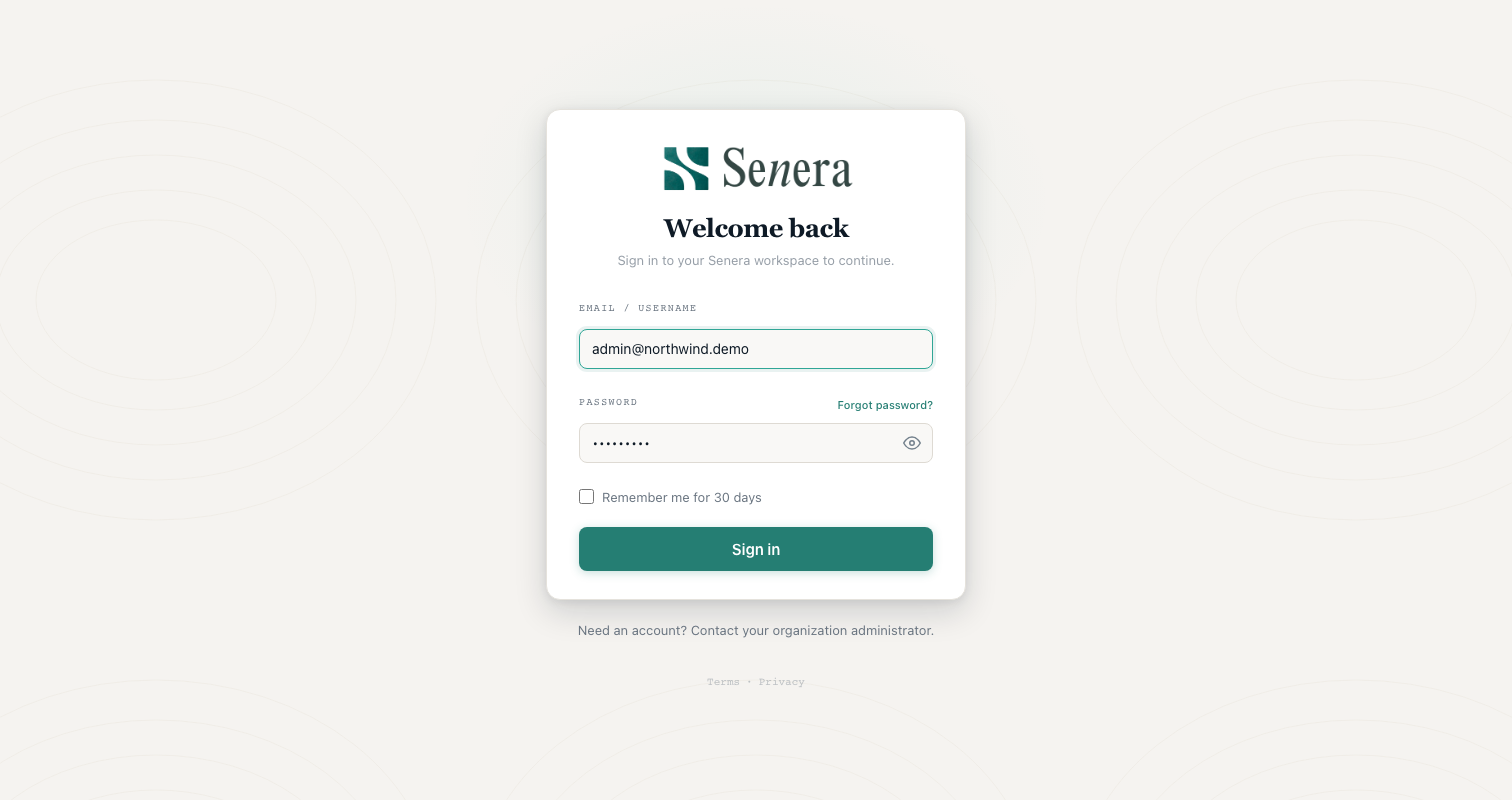
/signinOpen your Senera workspace URL and click Sign In. Enter the email and password your organisation administrator gave you, then click Sign in. Tick Remember me to stay signed in for 30 days on a trusted device.
Land on your Studio dashboard
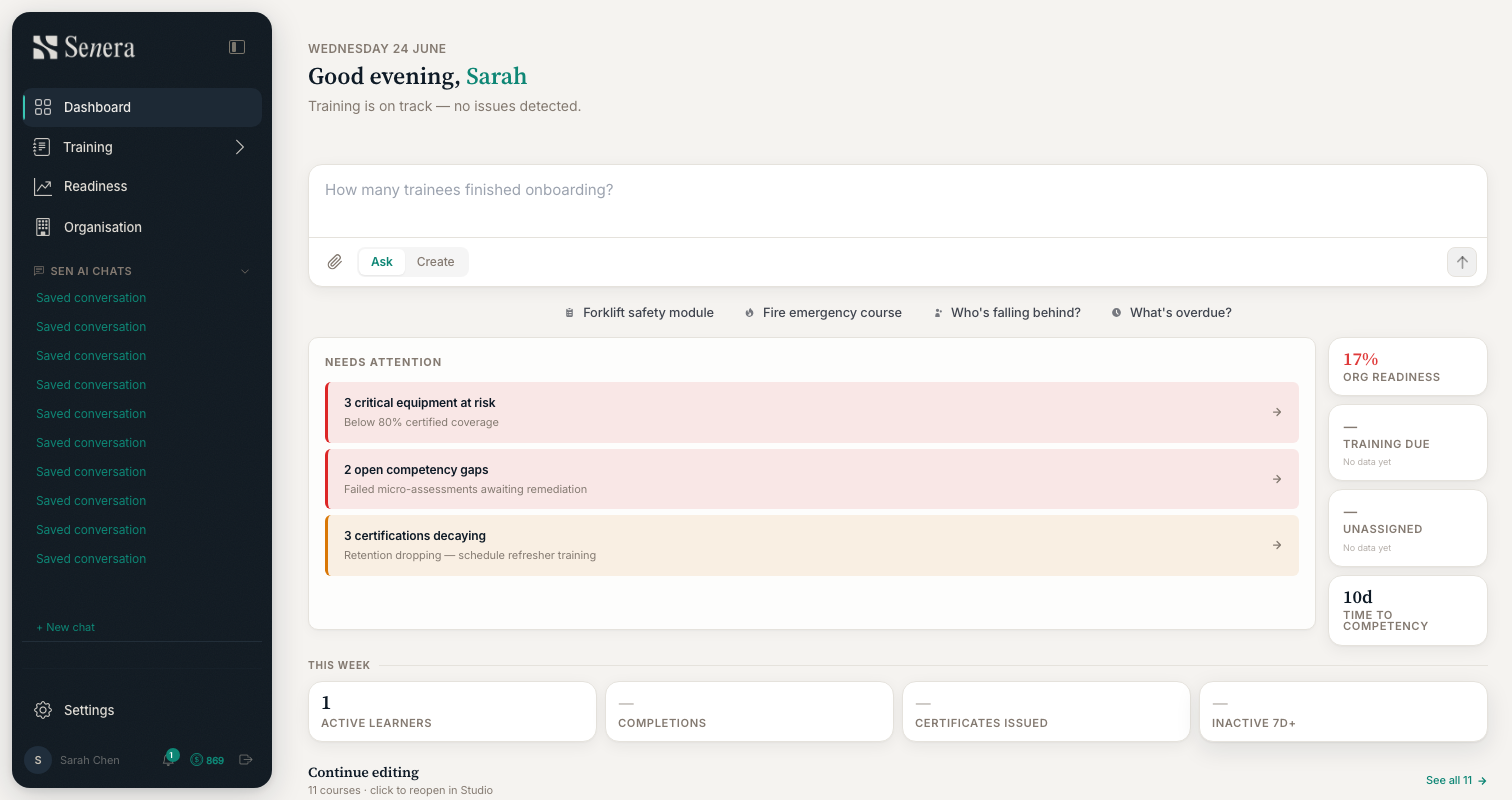
/appAfter signing in you arrive at the Studio dashboard — your home base for building and managing training. Use the left sidebar to move between Dashboard, Training, Readiness, Organisation and Settings.
Configure your organisation profile
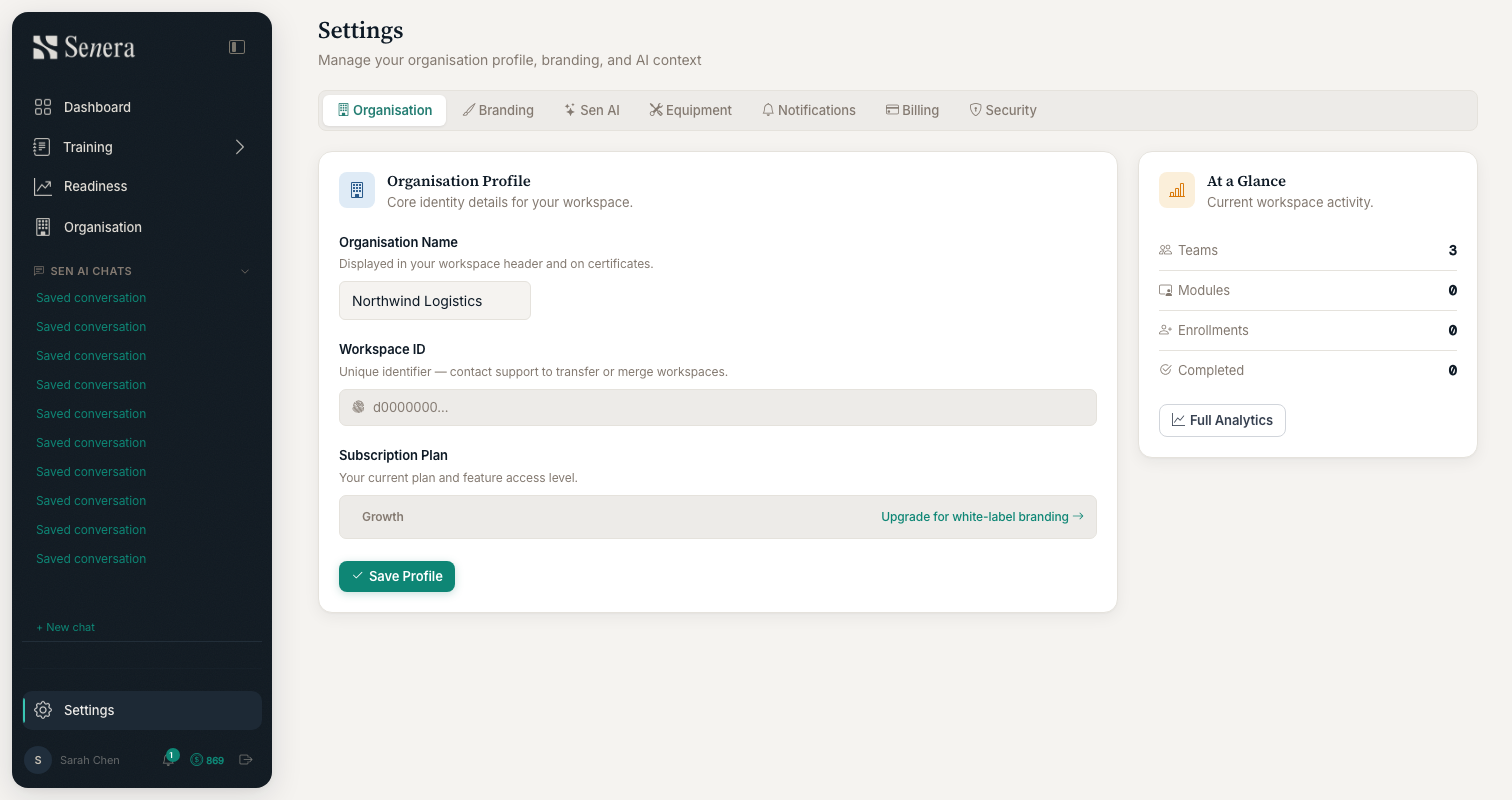
/settingsOpen Settings from the sidebar. On the Organisation tab, set your Organisation Name (shown in the workspace header and on certificates) and review your Subscription Plan. The tabs across the top — Branding, Sen AI, Equipment, Notifications, Billing, Security — are where the rest of your org setup happens. Click Save Profile when done.