Build a course in Studio
Turn an SOP or a plain-English prompt into a structured, editable training course using Sen AI.
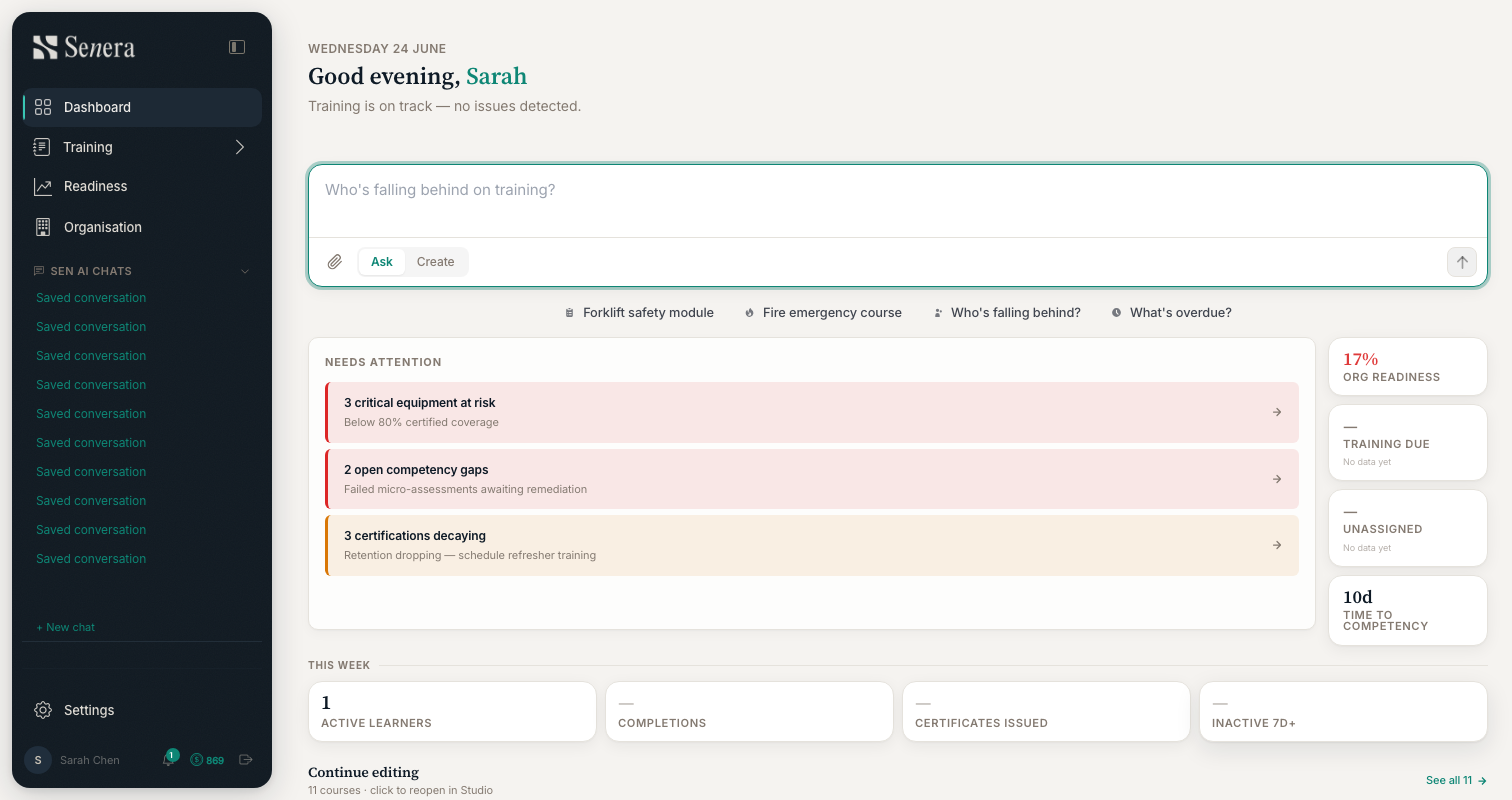
Start from the Studio dashboard
/appThe Studio dashboard is your home base. The Sen AI prompt sits at the top, your readiness signals (needs-attention, org readiness, this-week stats) below, and your recent courses under Continue editing. Everything starts from the prompt.
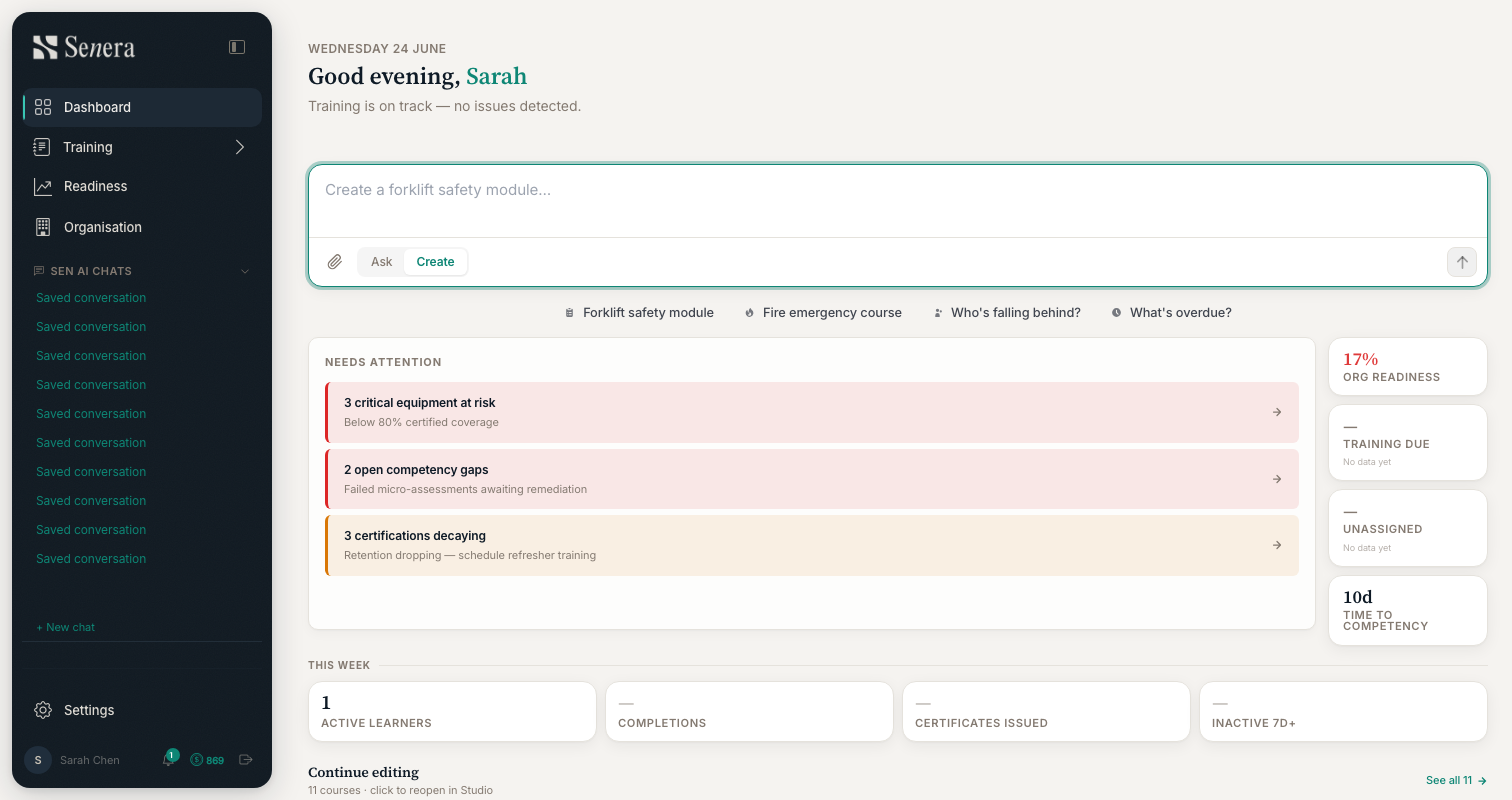
Switch to Create mode and describe the course
/appToggle the prompt from Ask to Create. Type what you want — e.g. "Build a confined-space entry course" — or attach an existing SOP / PDF. Sen structures it into role-appropriate modules and knowledge checks, ready for you to edit before publishing.
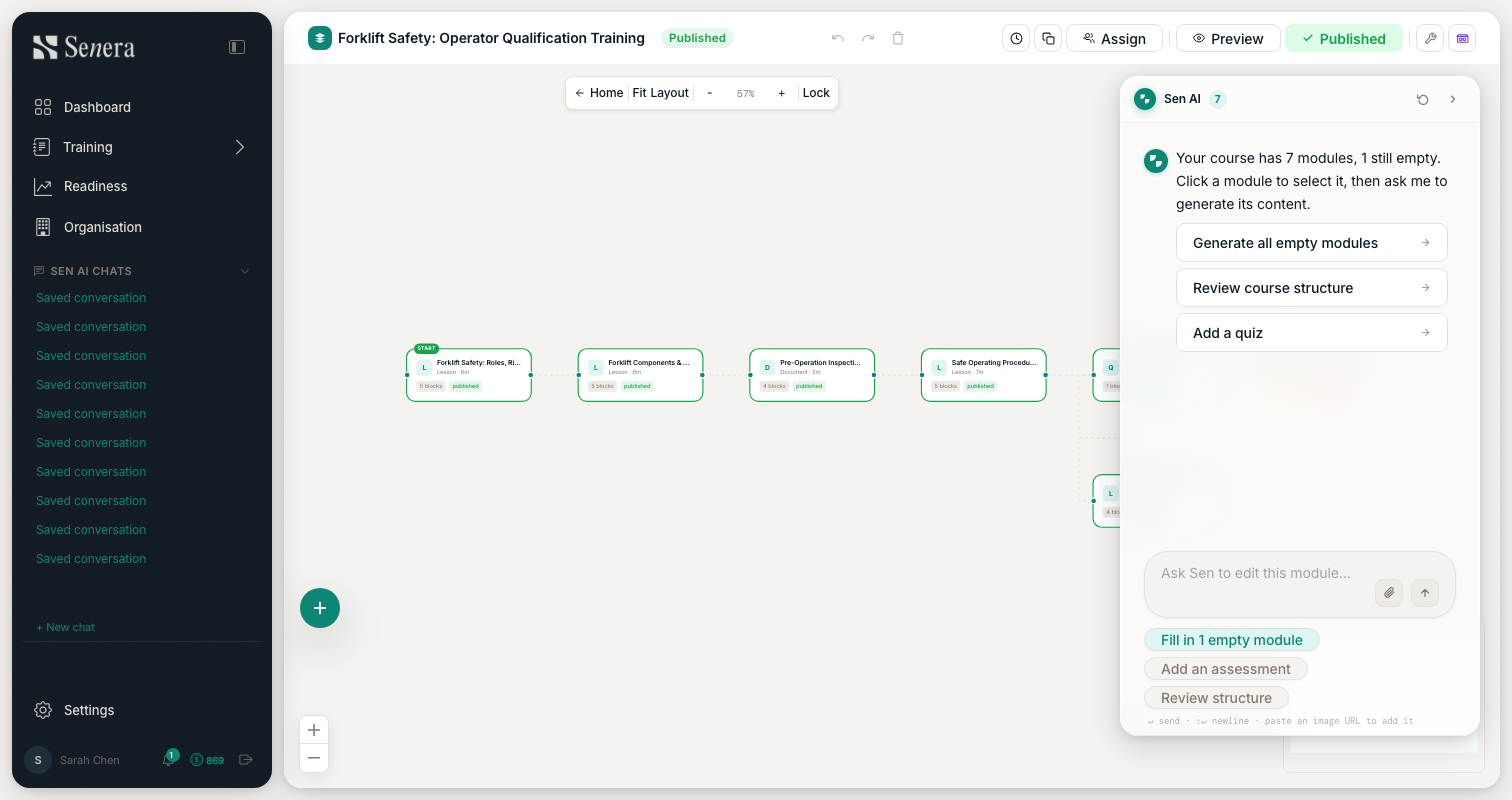
Edit modules on the Studio canvas
/app/{course}The course opens on the visual canvas — each module is a node you can reorder and edit. The Sen AI panel on the right offers contextual actions: generate empty modules, review the course structure, or add a quiz. When it's ready, use Preview to test it, then Publish to make it live.